Teachers assign. AI inspires. Students create.
Where classrooms create together.
From the first idea to the final showcase, Patch gives students the tools to build, teachers the tools to guide, and classrooms new ways to connect.
Student? Join your class with its code
Learning should lead to creating.
Students have ideas worth exploring. Teachers need tools that help turn those ideas into meaningful work.
-
Create
Create, don’t just consume.
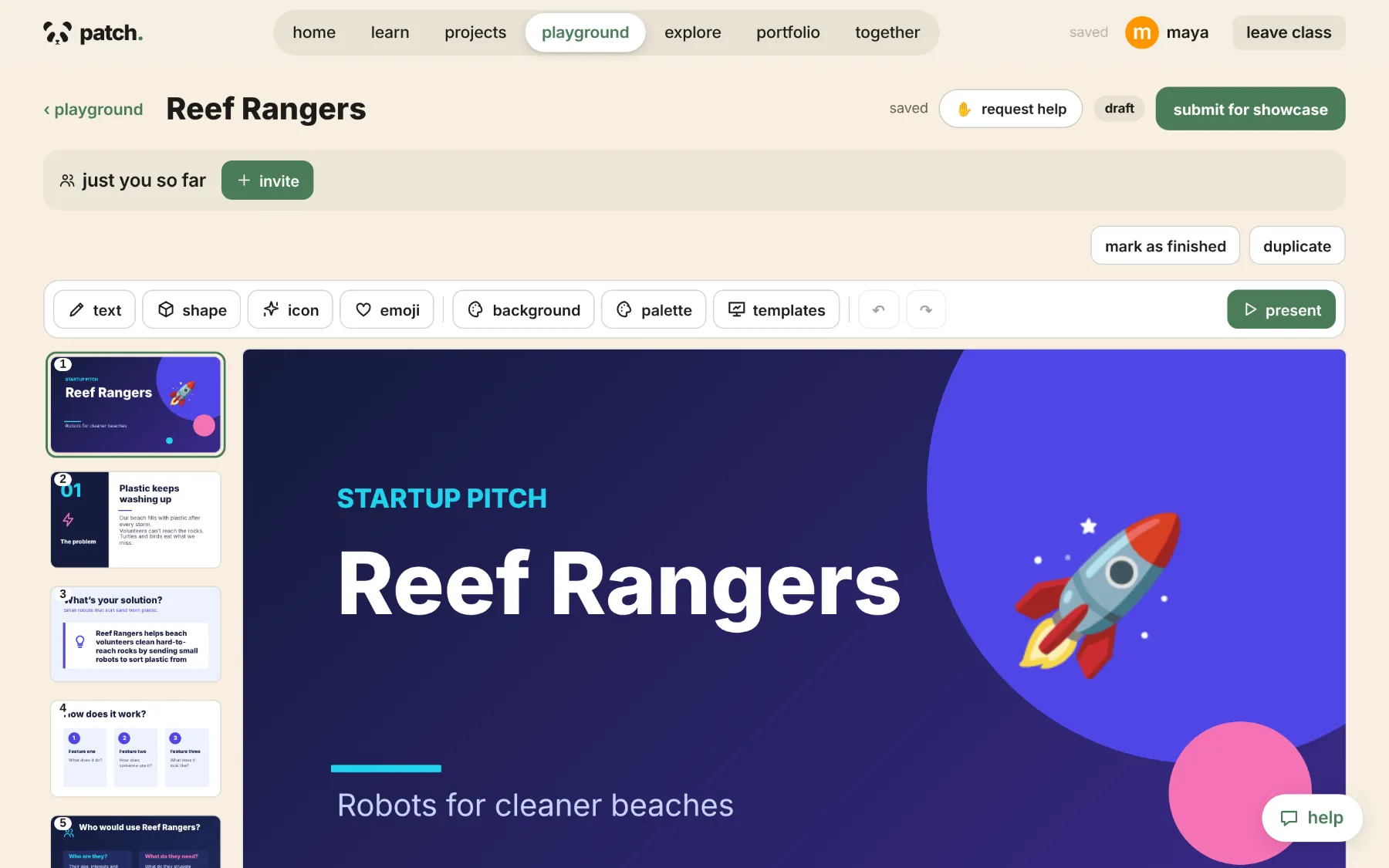
Students build presentations, posters, business plans and websites in real editors, and finish with something they can show.
-
Guide
Guide, don’t micromanage.
Teachers assign projects, give feedback and follow progress in one place, without chasing files across apps.
-
Connect
Connect, don’t isolate.
Collaboration grows from one live classroom board to shared projects that several classes build together.
The student experience
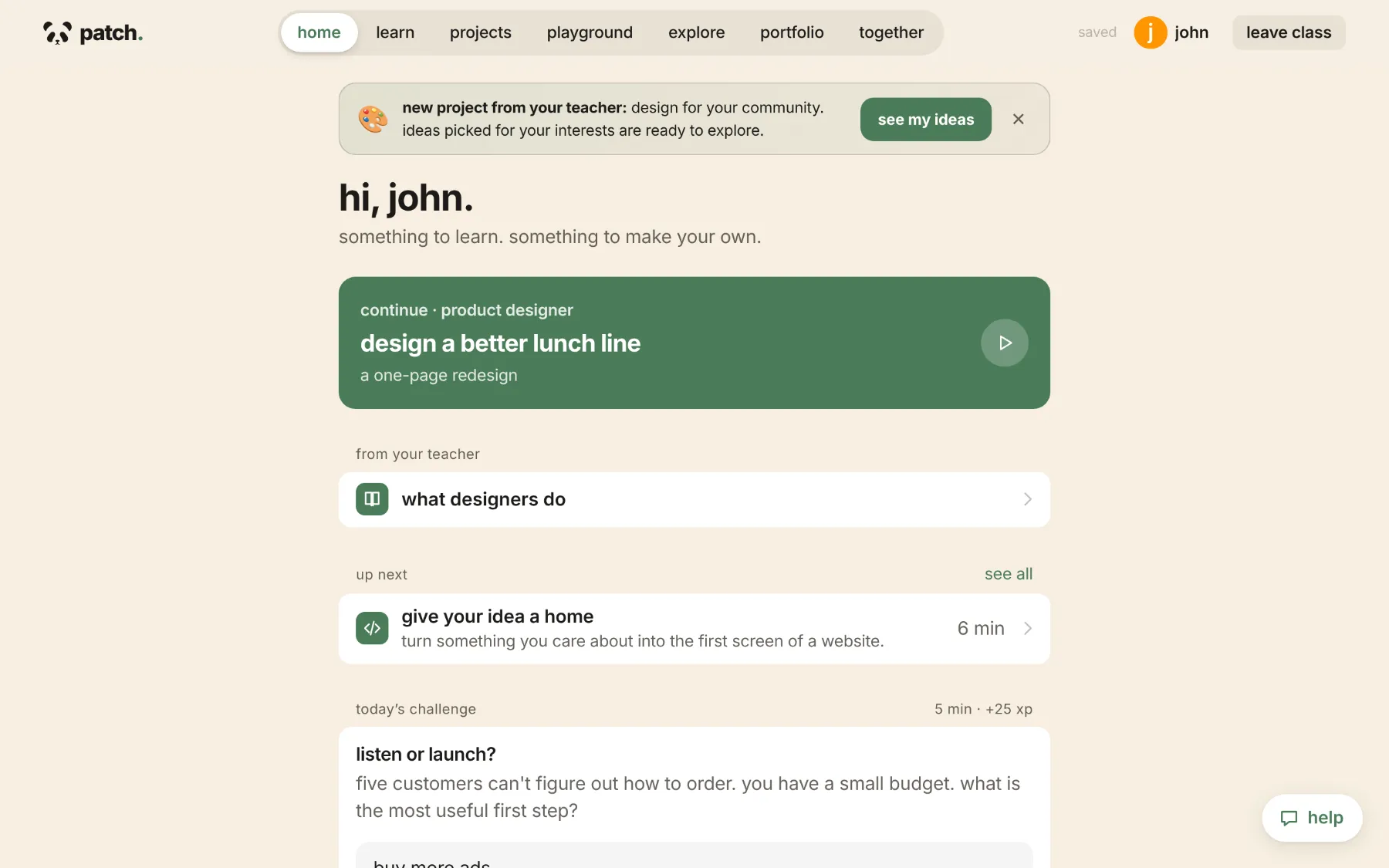
From curiosity to creation.
AI helps a student find a starting point. Everything after that is theirs: the choices, the design, the finished work.
-
Join with a class code.
Two words on the board and their name. No student email, no password to forget.
class codeteal turtle
-
Pick what they’re into.
A few quick questions about interests, from nature and science to stories, business and building things.
-
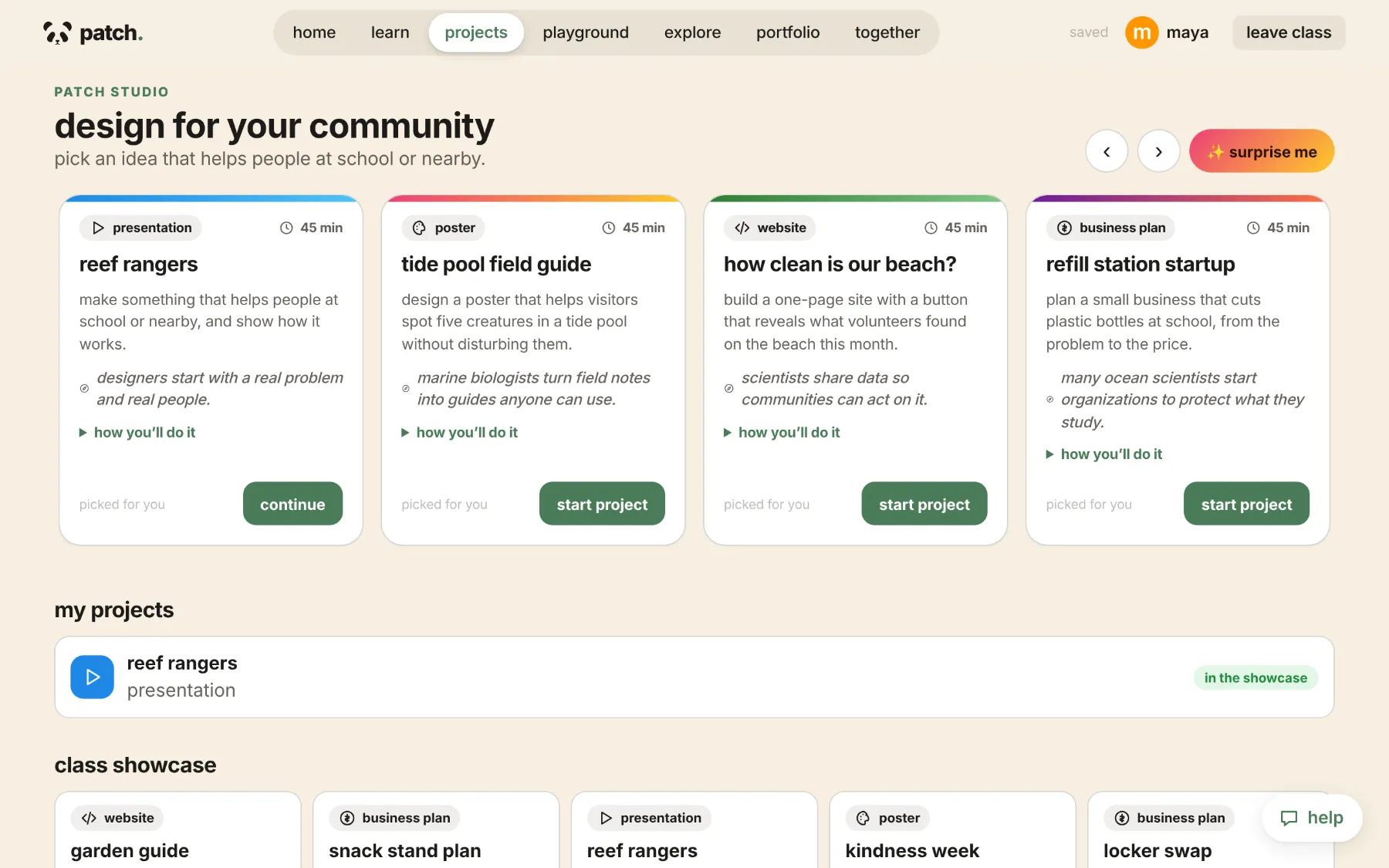
Get ideas made for them.
When a teacher assigns a project, each student gets ideas shaped by their own interests. Surprise me adds one more.
-
Build it in Patch Studio.
The student picks an idea and makes it. Work saves as they go, on any Chromebook.
-
Submit for review.
Submitting sends a snapshot to the teacher, who approves it or asks for changes with a note.
-
Share it in the Showcase.
Approved work appears in the class Showcase, visible only inside the classroom.
Patch Studio
Big ideas deserve real tools.
Students don’t just describe what they want to make. They make it.
Presentation Studio. Eight templates whose prompts ask questions instead of filling in answers. Text, shapes, icons and emoji, layouts and palettes, then present full screen.
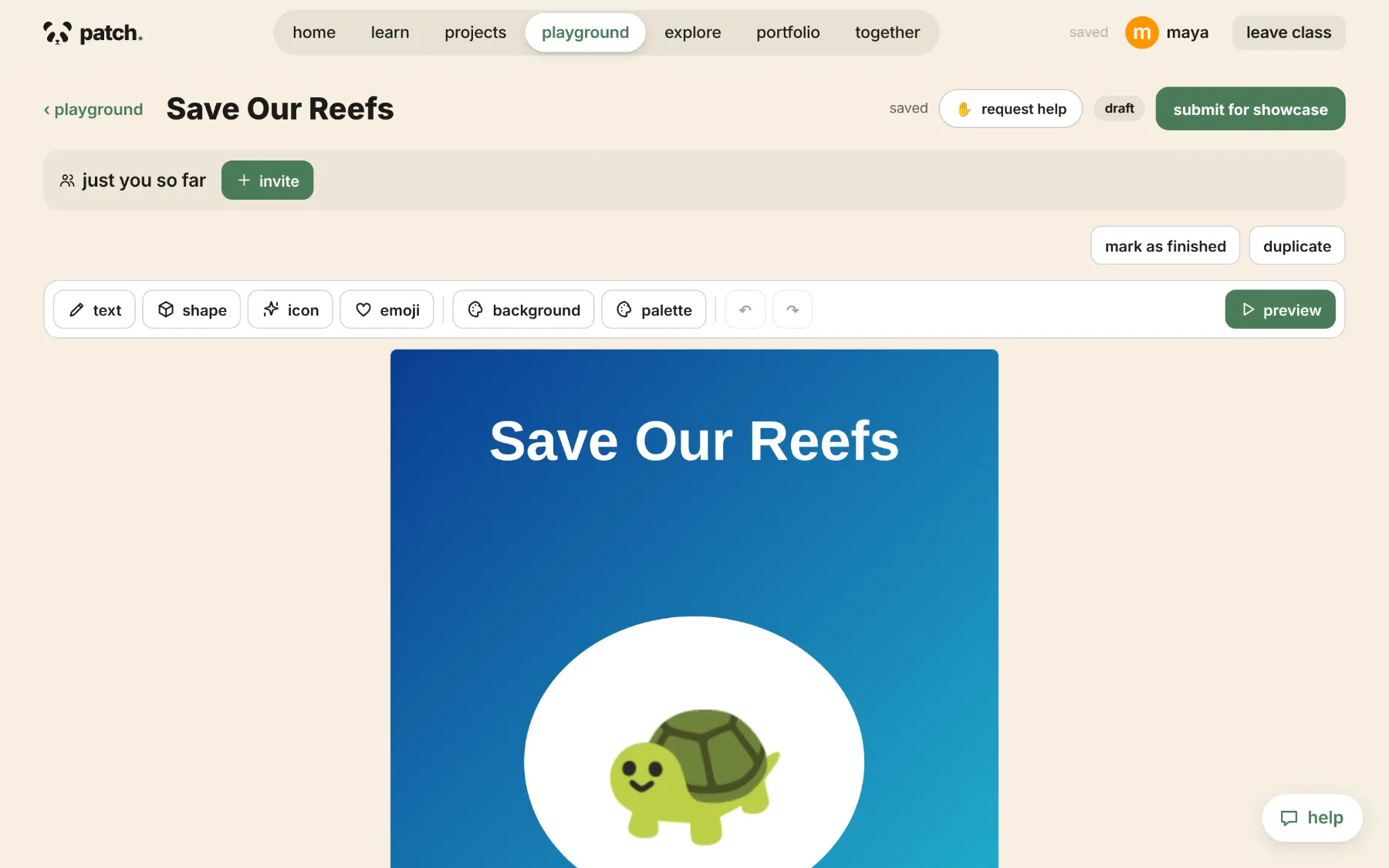
Poster Designer. The same canvas and tools on one page, for campaigns, field guides, logos and artwork.
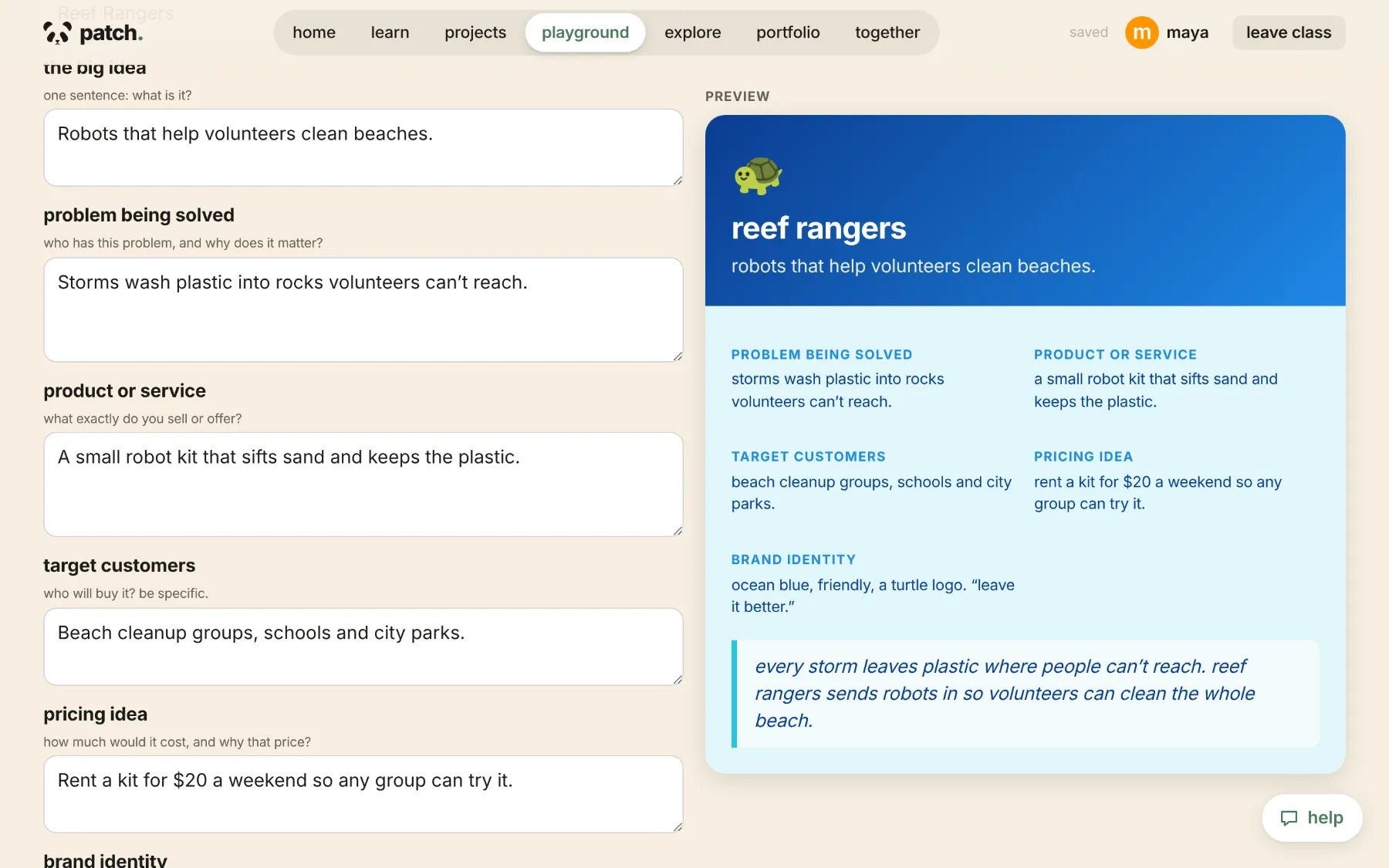
Business Planner. From the problem and the customers to pricing, brand and a 30-second pitch, with a live one-page preview.
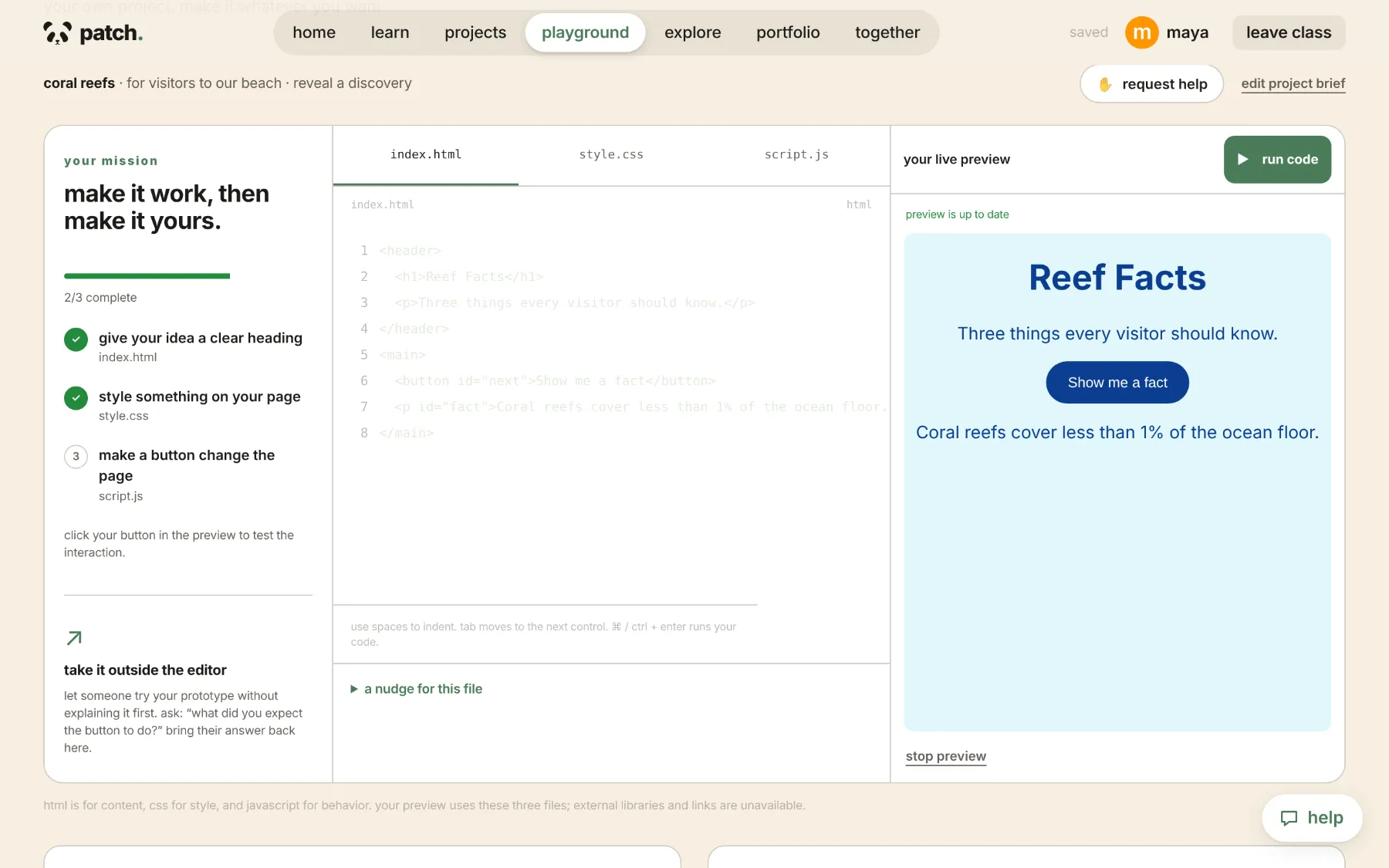
Website builder. Real HTML, CSS and JavaScript with a live preview and a short mission to follow.
Native tools
Everything is made inside Patch. No uploads, image searches or outside embeds.
Saved as they go
Autosave about a second after each change, so work survives a shared Chromebook.
Assigned or their own
Work on a teacher’s assignment, or start something new in the student Playground.
Feedback built in
Submit, get a note, revise and resubmit, all in the same project.
Also in Patch Studio
- Playground a private space for students’ own projects
- Collab invite a few classmates into one project
- Workshops guided lessons that end in a real project
- Sidequests optional creative challenges
Teachers turn each of these on or off for their class.
For teachers
More teaching. Less chasing assignments.
Patch handles the busywork around projects so class time goes to the students. You stay in charge of what’s assigned, what’s approved and what gets shared.
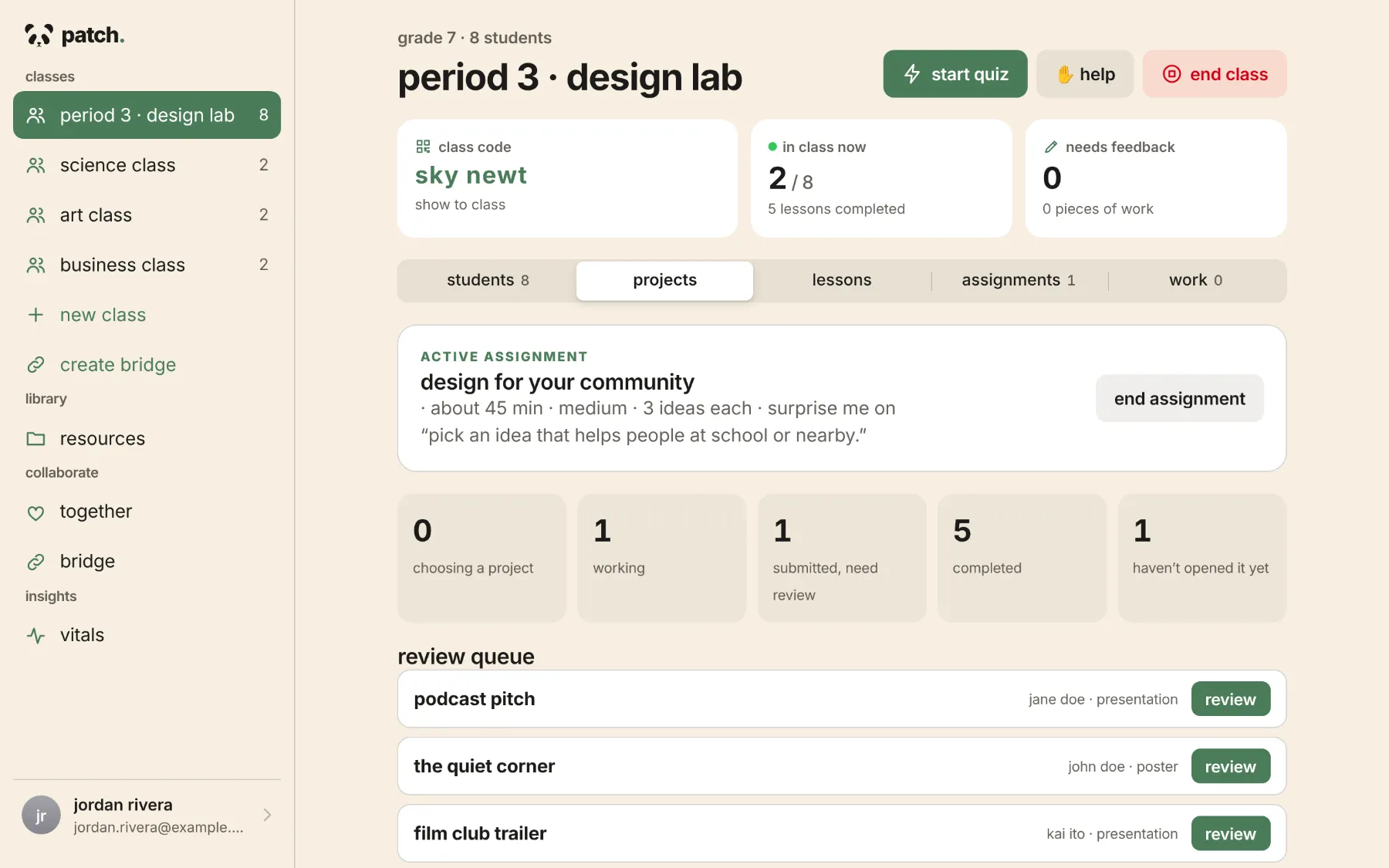
- Set up your class. Add students, put the code on the projector, and see who’s in class right now.
- Assign a project. One click, or set the time, difficulty and which formats are allowed.
- Review submissions. Everything waiting for you lands in one review queue.
- Request revisions. Send it back with a note. The student edits and resubmits.
- Approve and share. Approved work goes to the class Showcase, and you can take it down any time.
- Guide live activities. Run a whiteboard session or a quick quiz, then end class for everyone at once.
Patch Vitals
See the student. Understand the classroom.
Turn everyday classroom activity into a clearer picture of student interests, creative progress and participation.
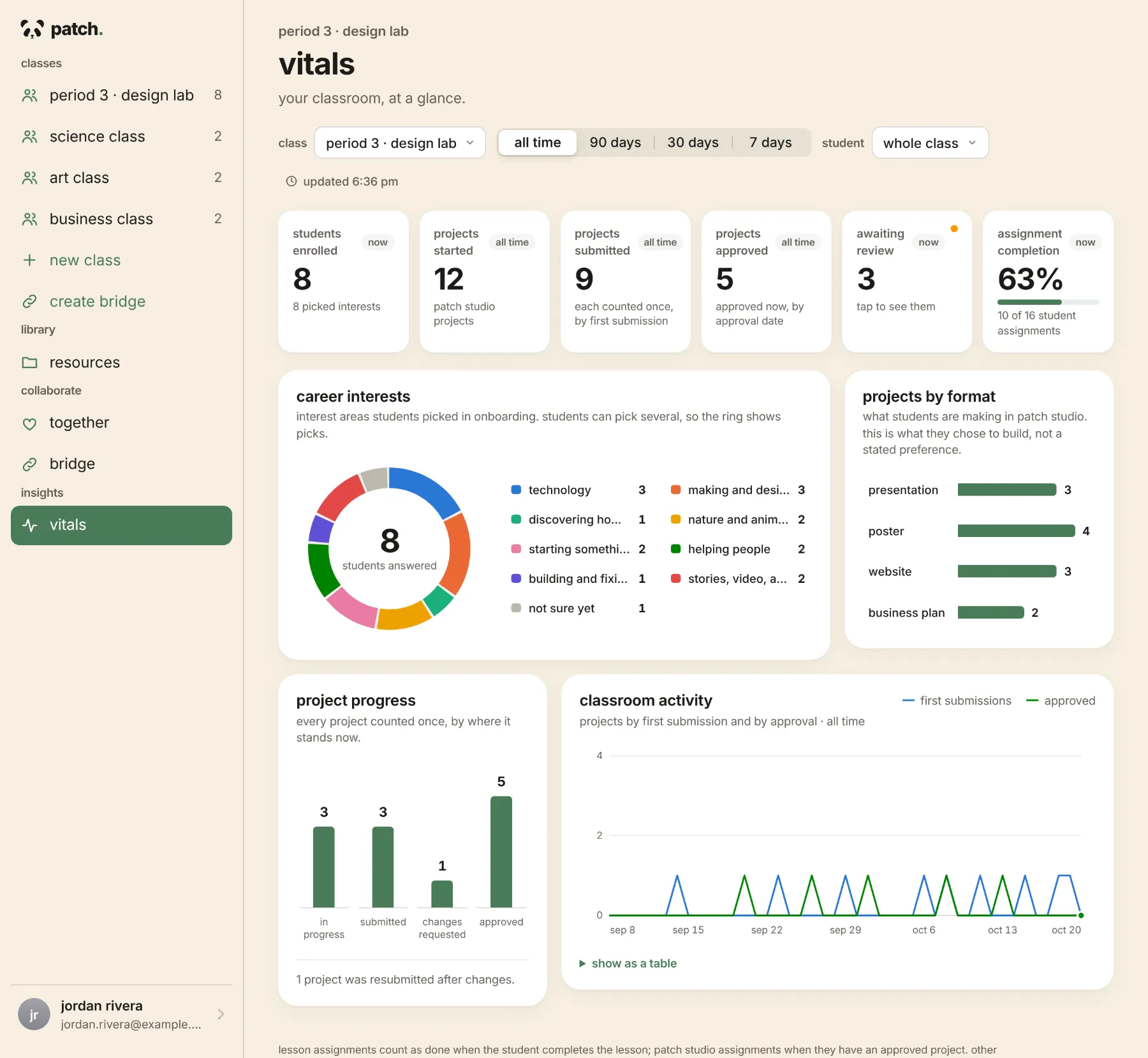
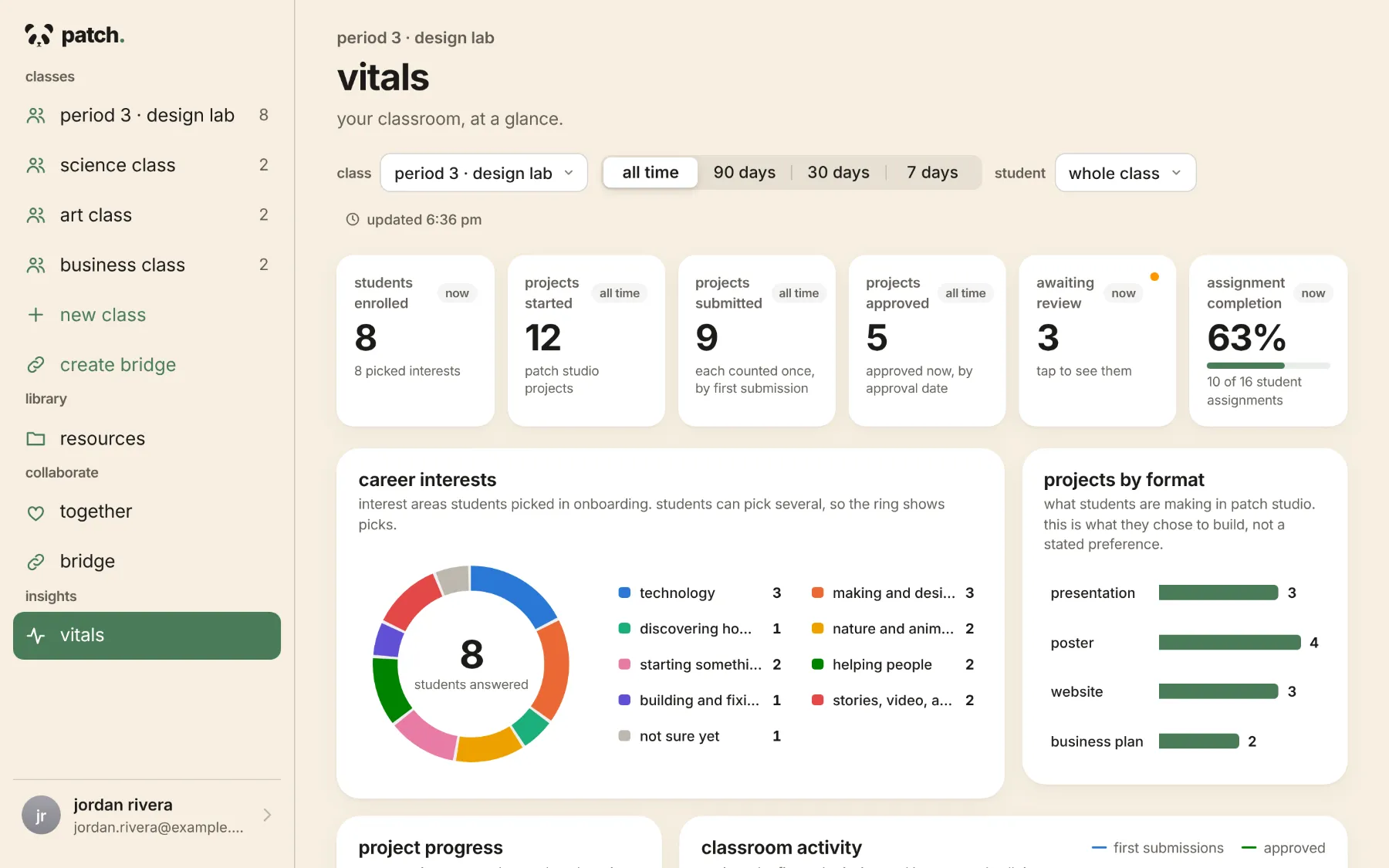
- Career interests what students picked when they joined, as a donut you can tap into.
- Projects by format what they’re choosing to make: presentations, posters, websites, business plans.
- Project progress every project once, by where it stands now.
- Classroom activity submissions and approvals by day, week or month, with a table view.
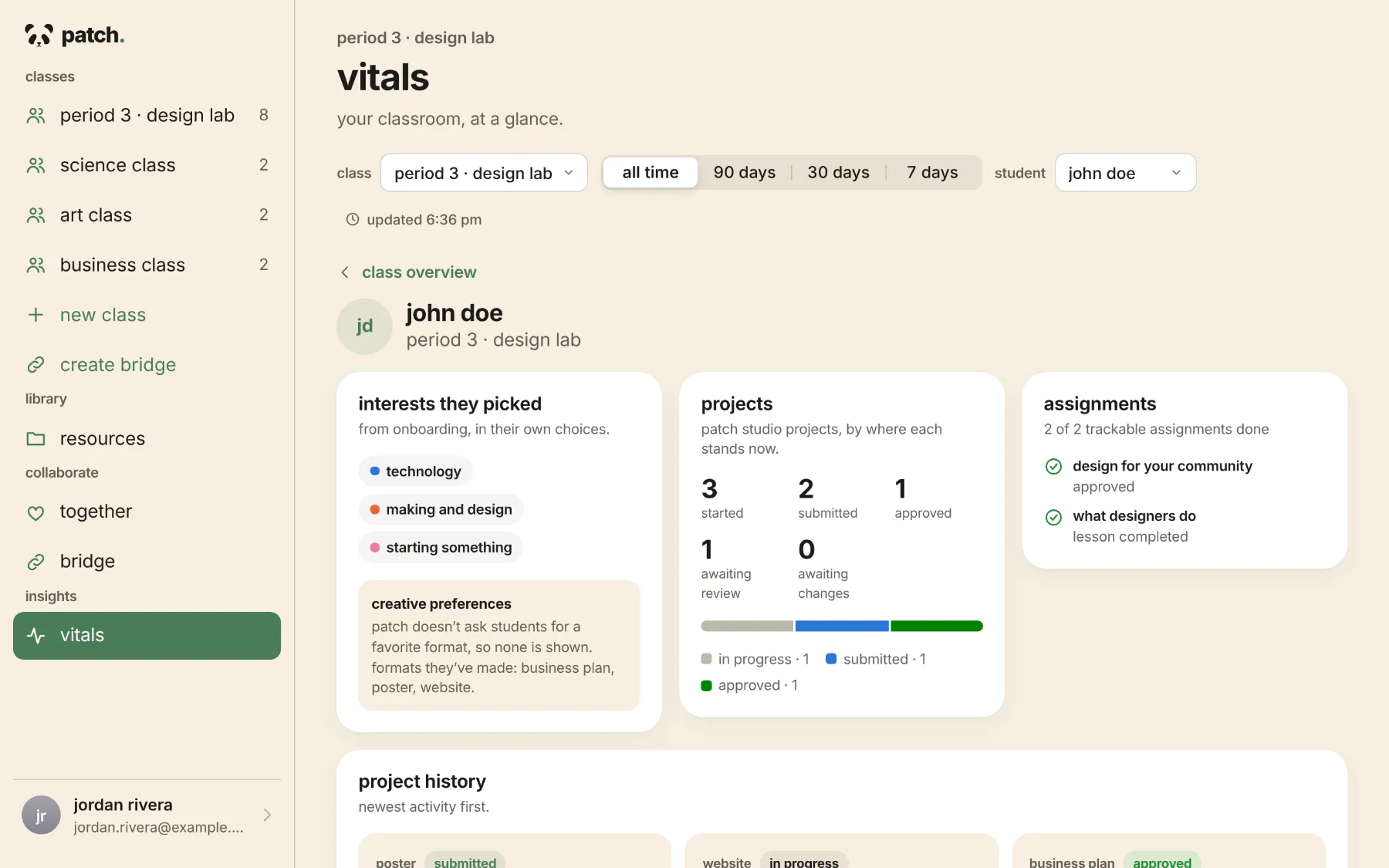
- Interests they picked in their own words, from joining Patch.
- Projects started, submitted, approved and waiting on changes.
- Assignments which project and lesson assignments are done.
- Project history with dates, feedback and Showcase status, one tap from review.
Built from real work. Every number comes from what students actually did in Patch, with plain definitions on the page. No scores, ranks or predictions.
For teachers and leadership. Teachers see their own classes and students. Patch administrators see aggregate Leadership Vitals: totals and class comparisons, never individual students.
Example data. Students shown are fictional.
Patch Together
Better ideas happen together.
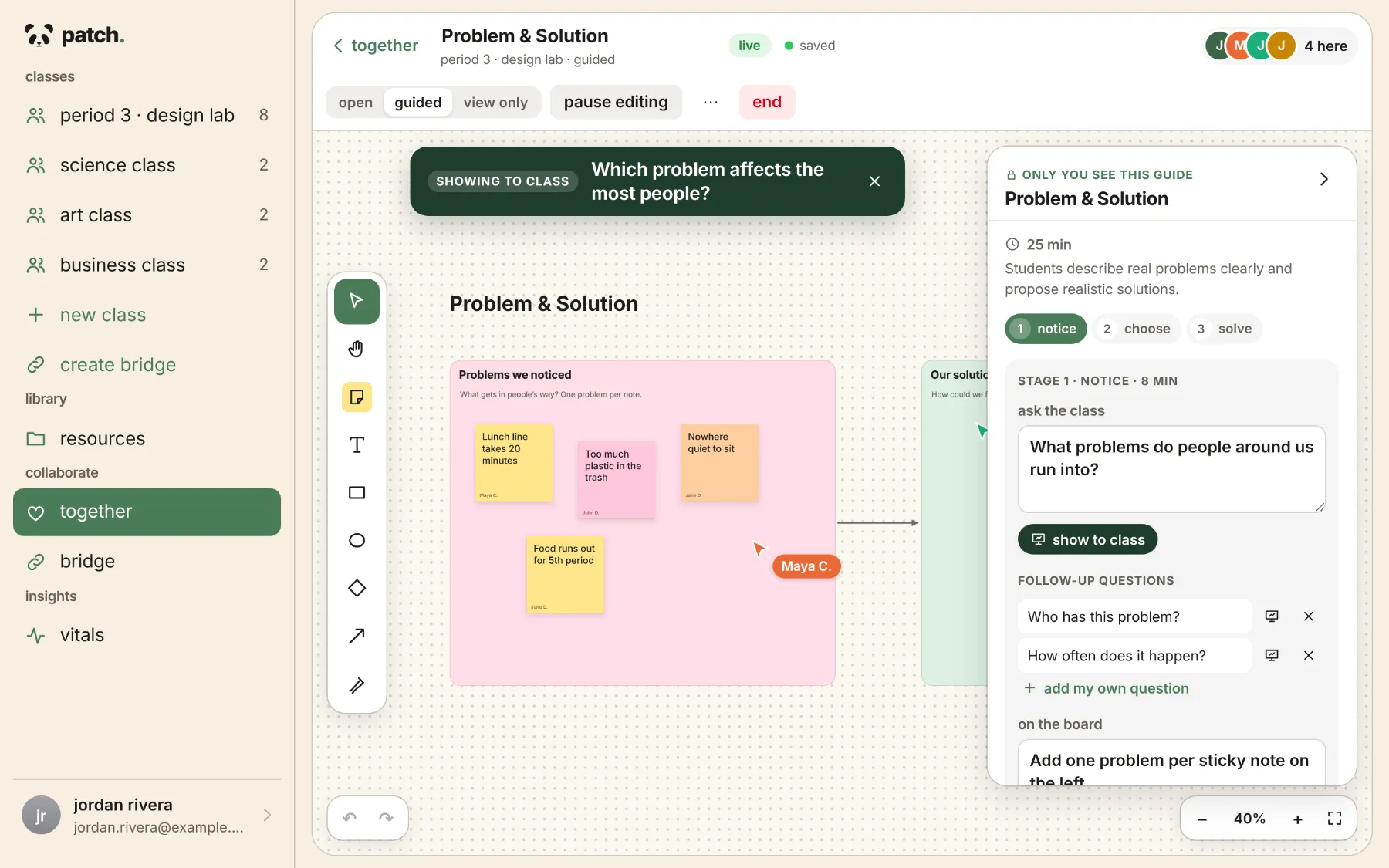
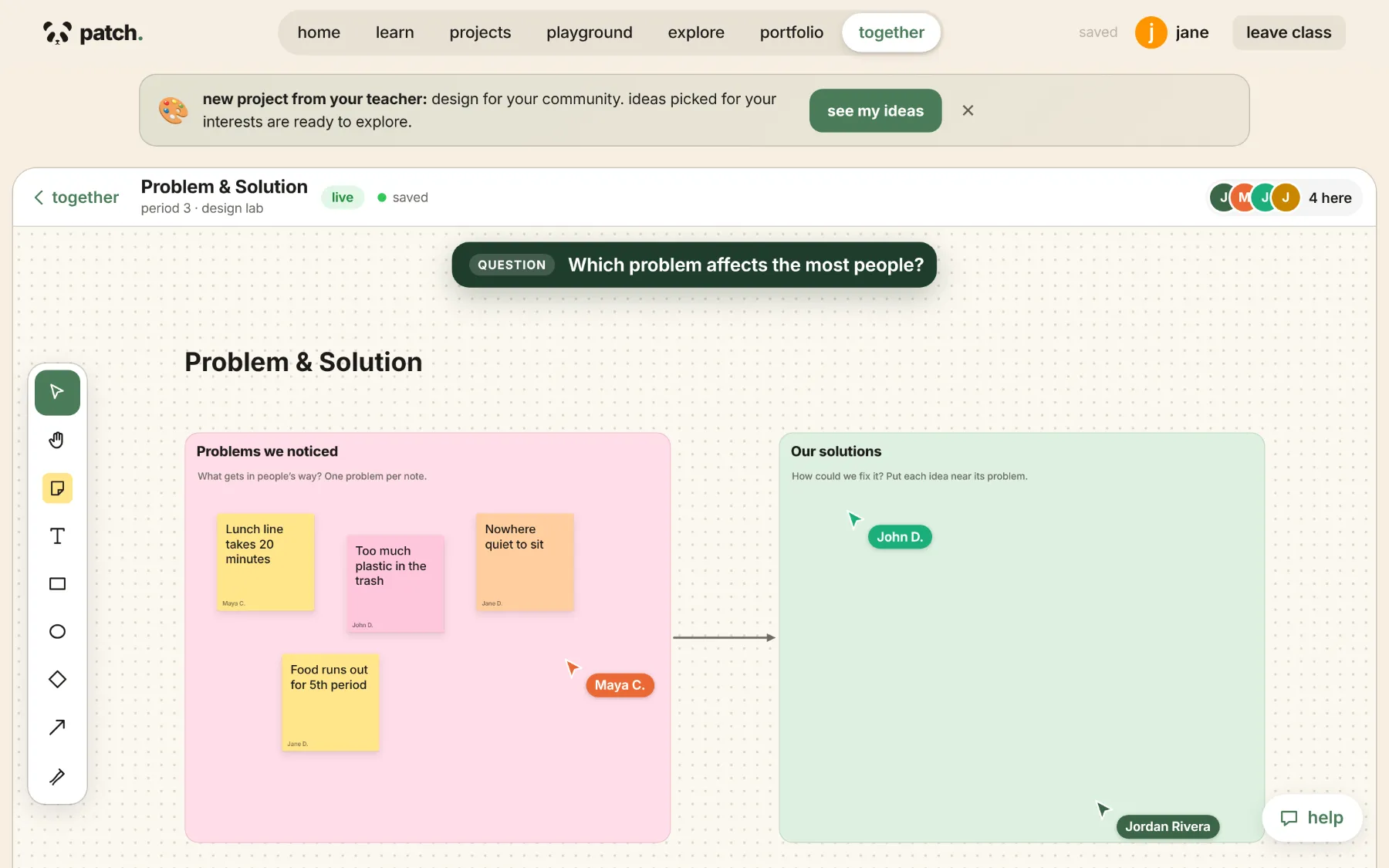
A live whiteboard for the whole class. Students add sticky notes, shapes and drawings at the same time. The teacher runs the session.
Ten activity templates
Brainstorming wall, mind map, problem and solution, startup idea lab, design thinking and more. Every part stays editable.
The teacher decides
Open, guided or view only. Pause editing, lock items, remove anything, hide names, bring everyone to one spot.
Guided discussion
A private guide with questions for each stage. Show one question to the class at a time, then turn the best ideas into a project.
What if the classroom didn’t end at the classroom door?
Students can be part of the same educational community without ever meeting or working at the same time.
- Different schools.
- Different schedules.
- Shared potential.
Introducing Patch Bridges
Different classrooms. One shared mission.
Bridges connects classrooms across school sites, so students can contribute to one shared project on their own schedules.
Example Bridge: three classrooms each take one role in a shared project, and their approved work comes together in one Showcase.
- Science Class Product design
- Art Class Brand identity
- Business Class Marketing and presentation
- Separate classrooms
- Connected
- Contributions shared
- One project
- One Showcase
Illustrative example of three classrooms. It doesn’t describe an active partnership or a live project.
A classroom can contribute something today that another classroom builds upon tomorrow.
- Connect classes. A teacher links two to ten of the classes they manage into one Bridge.
- Give each a role. Design, brand, engineering, marketing, research and more, each with its own instructions.
- Create as usual. Students make their part in Patch Studio, the same editors they already know.
- Pass it forward. Classes work in their own class time and leave updates for the next class. Nobody has to be online together.
- Vote on decisions. Students choose things like the official logo on a visual ballot. One student, one vote, and each class counts equally.
- Teachers moderate. Contributions, updates and feedback are reviewed before other classes see them.
- Celebrate together. Approved work comes together in one exhibition that every participating class can open.
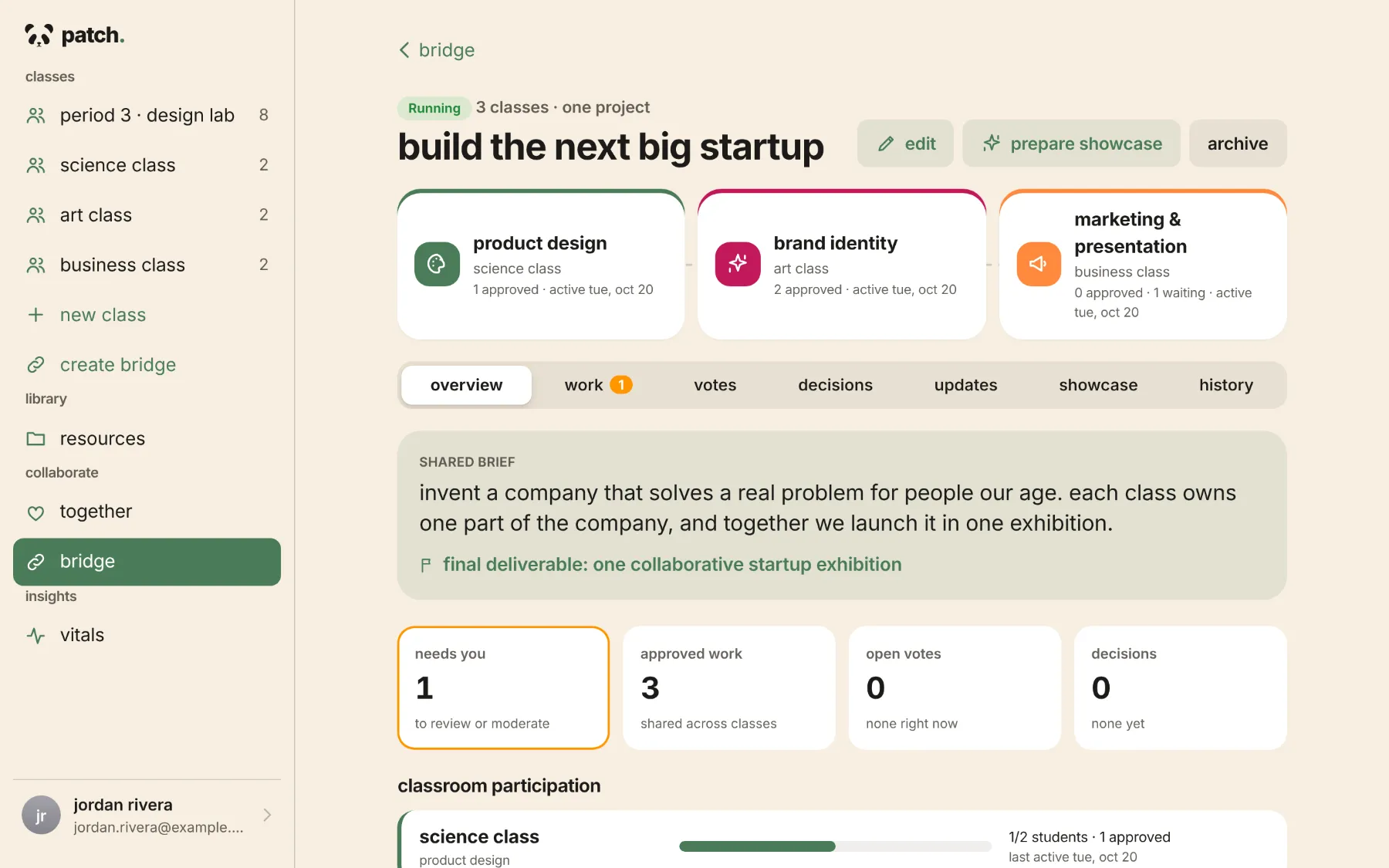
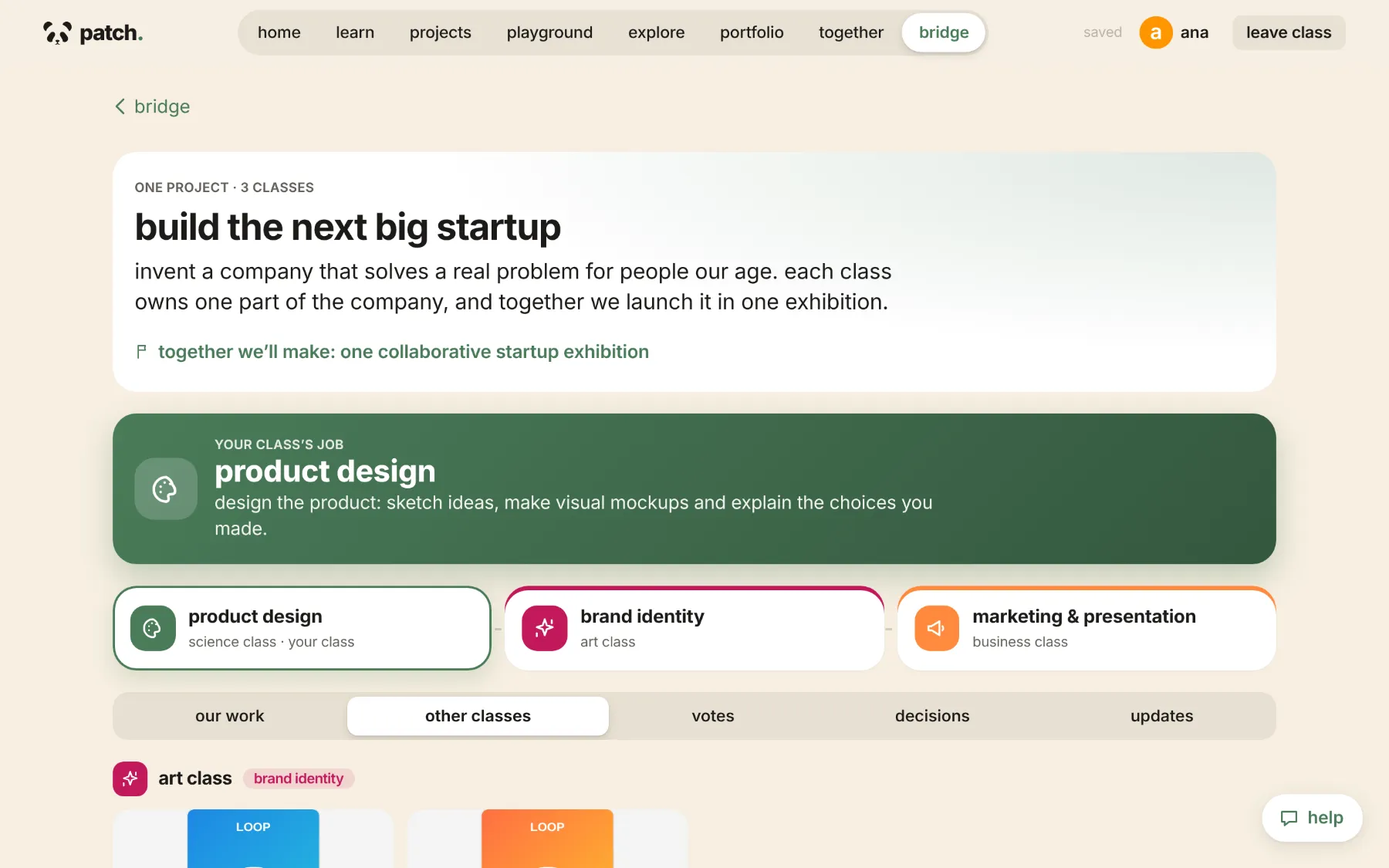
Where Bridges is today: one teacher connects classes they already teach in Patch, for example a teacher who runs programs at more than one site. Connecting classes that belong to different teachers isn’t available yet.
Looking ahead
Built online. Celebrated together.
Picture students from different sites meeting in person to present the project they built together, after weeks of contributing from their own classrooms.
- ConnectClasses join a Bridge
- CollaborateRoles, votes, updates
- CreateWork in Patch Studio
- ShowcaseOne shared exhibition
- MeetAn event your program plans
Technology should create opportunities for real human connection.
This is a vision for how programs can use Patch. Patch provides the online project and exhibition; it doesn’t organize events, travel or school partnerships.
For schools and program leadership
One platform. A bigger picture.
For principals, program directors and district teams who want project-based learning that’s consistent, visible and worth celebrating.
A consistent project model
The same assign, create, review and showcase cycle in every participating classroom.
Teacher-guided creativity
Students choose and build; teachers set the assignment and approve what gets shared.
Visibility, where authorized
Teachers see their classes in Vitals. Administrators see aggregate totals, without student names.
Projects across sites
Bridges lets one teacher coordinate a single project across several classes and locations.
Work worth sharing
Class Showcases and Bridge exhibitions collect approved student work in one place.
A base for community programs
Shared projects and exhibitions give enrichment programs and showcases something real to build on.
What exists today. Leadership Vitals is available to Patch’s administrator role and shows aggregate data across classrooms. Scoping it to one school or district, and organization-level administration, aren’t built yet.
Everything works better together.
Six parts, one learning cycle. Each one hands off to the next.
- Teachers guideProjectsAssignments and ideas for each student
- Students createStudioReal editors for real work
- Teachers guideVitalsInterests and progress at a glance
- Classrooms collaborateTogetherLive boards for the whole class
- Classrooms collaborateBridgesOne project across classes
- Communities celebrateShowcaseApproved work, shared
Then the next project begins.
How Patch is built
Technology that supports the classroom.
Patch is young software. We’d rather show exactly what it does than promise what it doesn’t.
Patch runs on AWS Lightsail. AI features use Anthropic’s Claude. Teachers can connect Google Drive to bring in their own lesson files.
AI where it helps ideas
AI suggests project ideas and can draft a discussion guide for the teacher to edit. Patch sends interest labels, not names or student writing. Creating, editing and presenting don’t use AI, and if AI is unavailable, Patch suggests ideas on its own.
A teacher in the loop
Nothing reaches the Showcase, another class or a vote without a teacher approving it.
Permissions on every request
The server checks role, class and ownership each time. Students see only their own class’s work.
Made inside Patch
Students build with Patch’s own editors and boards. No image uploads, outside images or embeds.
Careful with student information
Students join with a class code and their name. Sessions on shared devices end after 10 minutes without activity, and classmates see first names and last initials.
The next great idea starts in a classroom.
Give students room to create, teachers tools to guide, and classrooms new ways to build together.
Teachers create an account in a minute. Students join with a class code.